Usability Testing & Heuristic Evaluation with AI
Ever wish you had an extra pair of eyes to review your designs before shipping?
I recently discovered you can connect Claude with Figma to get detailed UX feedback in minutes. Here's how to set it up and use it to catch usability issues early.
Why Not Just Upload a Screenshot?
You could upload a screenshot, but here’s the thing: when Claude looks at an image, it only sees pixels. When it connects through MCP, it reads your actual Figma file and all the underlying design data.
That means it can see your exact padding values, font sizes, color codes, spacing, margins, component structure, etc. It’s like the difference between looking at a photo of a building versus having the architectural blueprints. Claude can catch inconsistencies like:
“This button has 12px padding but your design system uses 16px.”
That would be impossible to spot from a screenshot.
What You'll Need
- Claude.ai account (Free or Pro)
- Figma account with designs to evaluate
- A few minutes to set up the Figma MCP connection
Step 1: Connect Figma to Claude
This takes about 2 minutes:
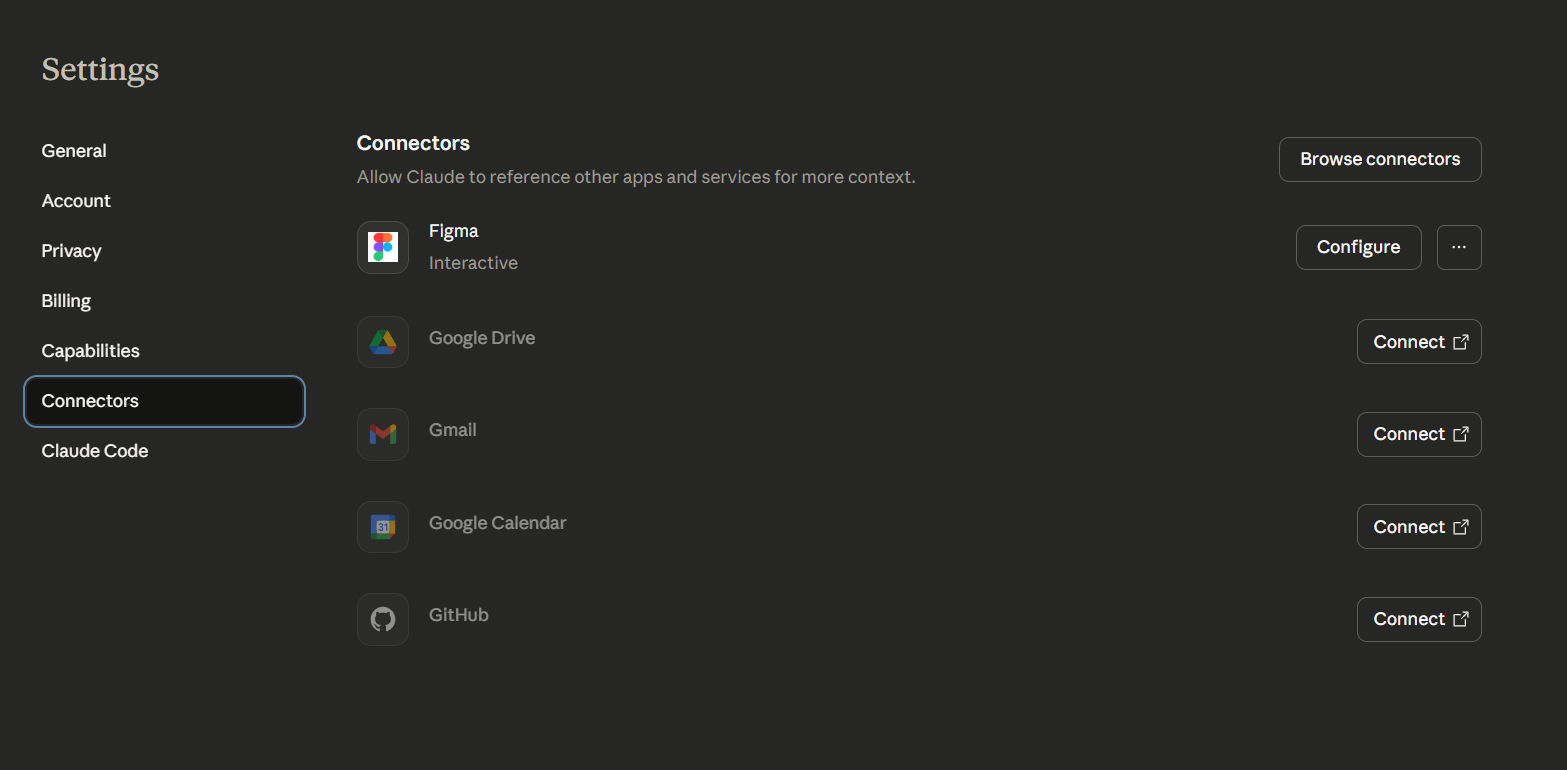
- Go to Claude Settings (click your profile icon in the bottom-left)
- Click on Integrations
- Find Figma and hit Connect
- Log in to Figma and approve the permissions
- Done! You’ll see Figma listed as connected
Step 2: Get Your Figma Link
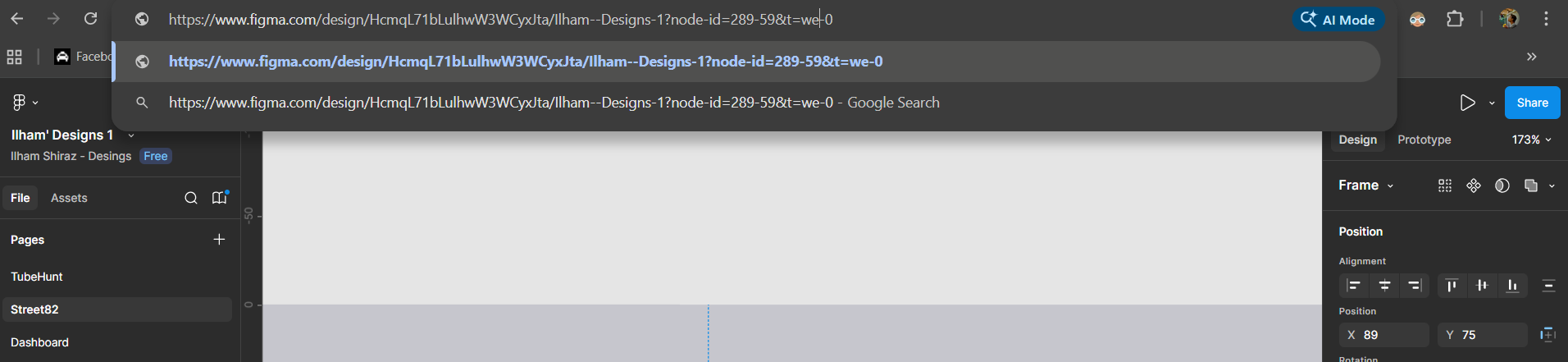
- Open your Figma file
- Select the frame you want evaluated
- Right-click and choose Copy link to selection (or just copy the URL)
Step 3: Ask Claude to Review It
Paste your Figma link into Claude and ask for feedback. You can approach this two ways:
For Expert Analysis
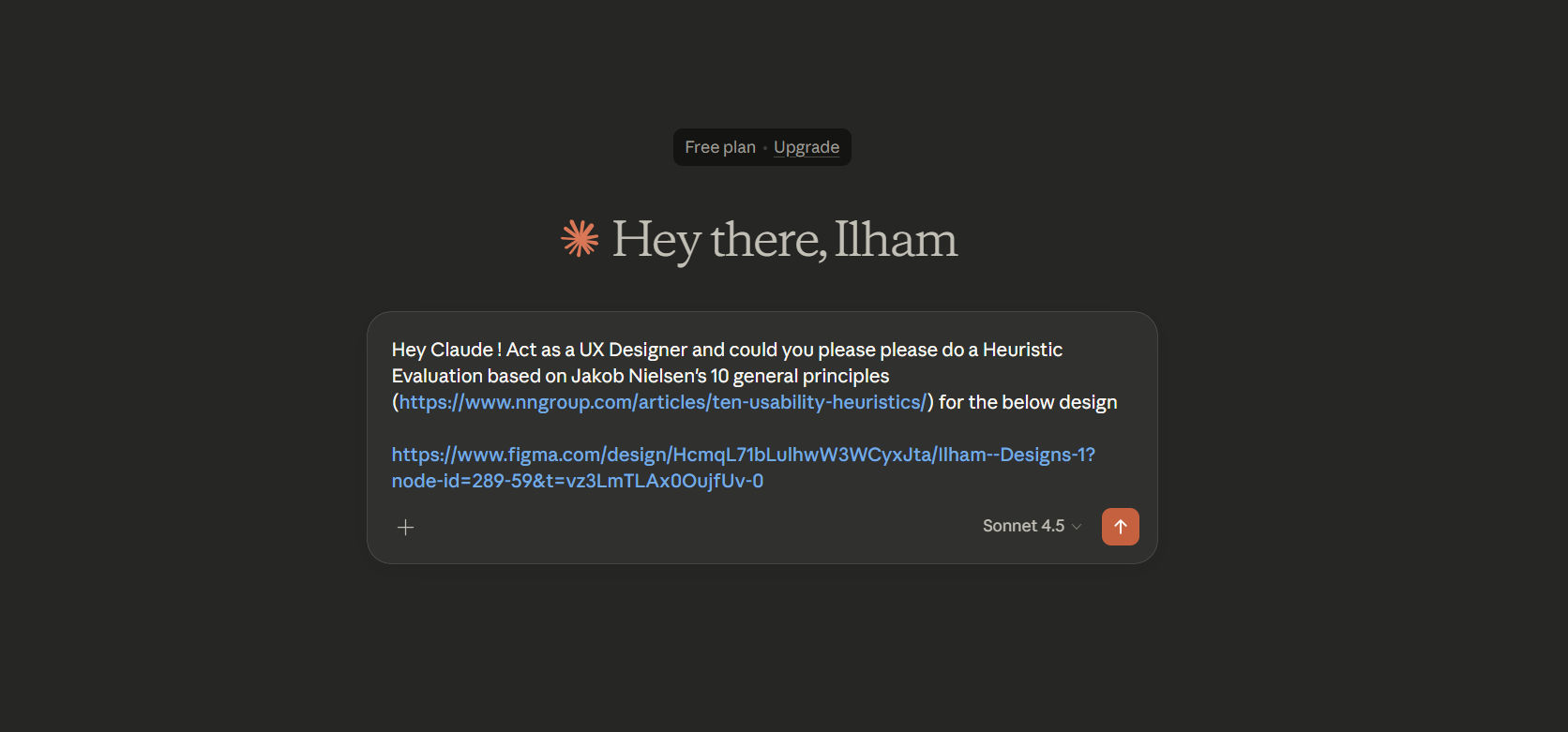
Hey Claude !

Act as a UX Designer and could you please please do a Heuristic Evaluation based on Jakob Nielsen's 10 general principles
(https://www.nngroup.com/articles/ten-usability-heuristics/)

for the below design (link to the design)

Give me specific findings and recommendations.
For User Perspective
Hey Claude!
Please act as a Gen Z end user for Street82 and conduct a usability test on the design below.

[Your Figma link]

What might confuse users or slow them down?
What You'll Get
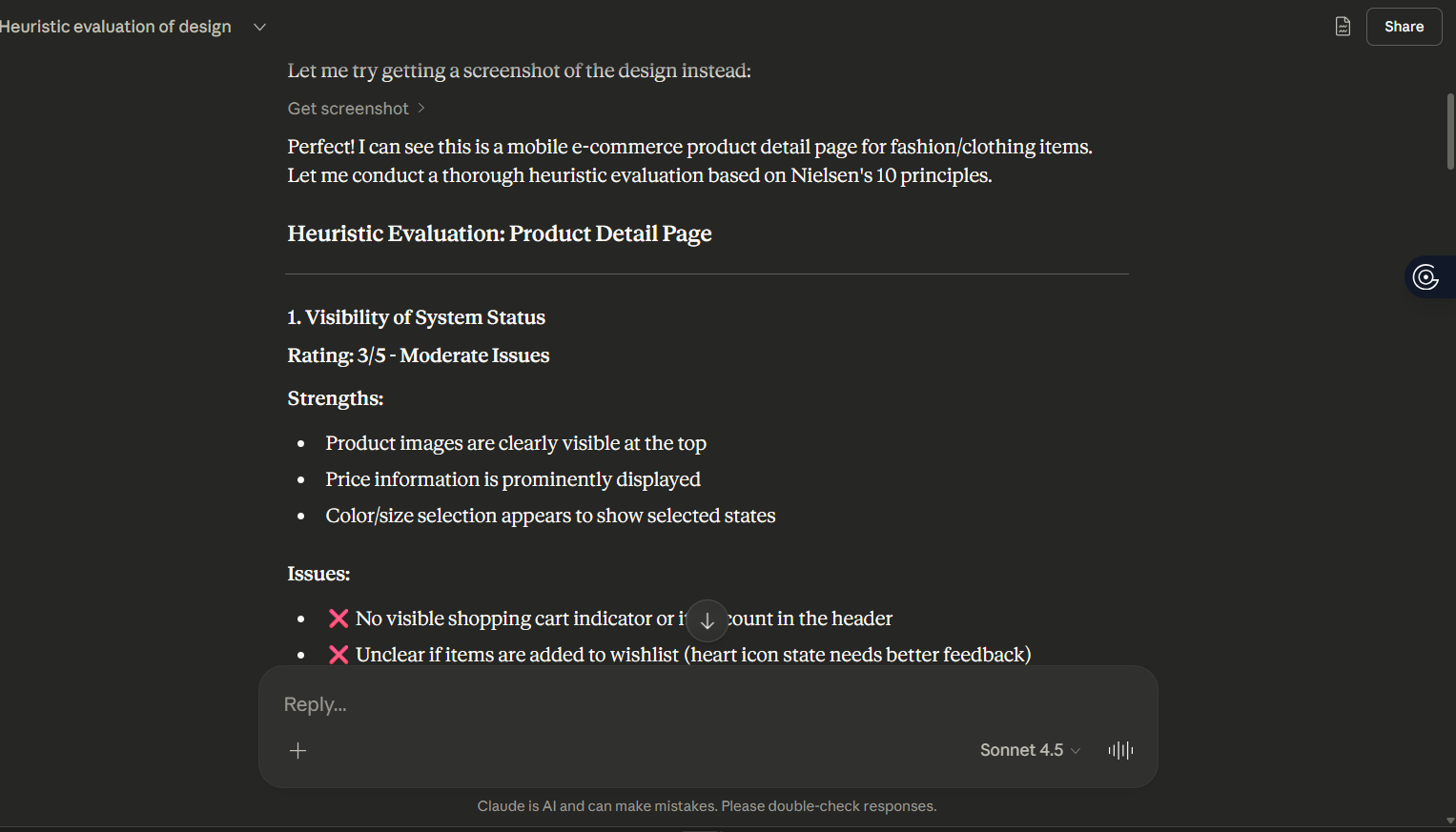
Claude will analyze your design against Nielsen Norman’s 10 usability heuristics and give you specific feedback on:
- Navigation clarity
- Error prevention
- Consistency
- Visual hierarchy
- Undo and recovery flows
Each finding comes with concrete suggestions for improvement.
Tips for Better Results
- Give context about what the design is for (e.g., “checkout flow for an e-commerce app”)
- Link to complete flows instead of single screens when possible
- Ask follow-up questions if something interesting is spotted
- Try both perspectives (expert + end user) for comprehensive feedback
A Few Caveats
Claude can’t interact with prototypes or observe real user behavior. Think of it as a very thorough design review, not a replacement for user testing.
The more context you give about your users and their goals, the better the feedback.